

Connecting to a BodyLytics Live Call
BodyLytics Live sessions run inside the Academy — no separate app or download needed. This guide covers cohort group sessions; VIP 1-2-1 calls work the same way once you've booked one (see the VIP booking guide).
1. Find your session
Go to Live Training in the sidebar. Any session currently in progress shows a red LIVE badge. If you're already booked, you'll see a Join Meeting button next to it — click it.
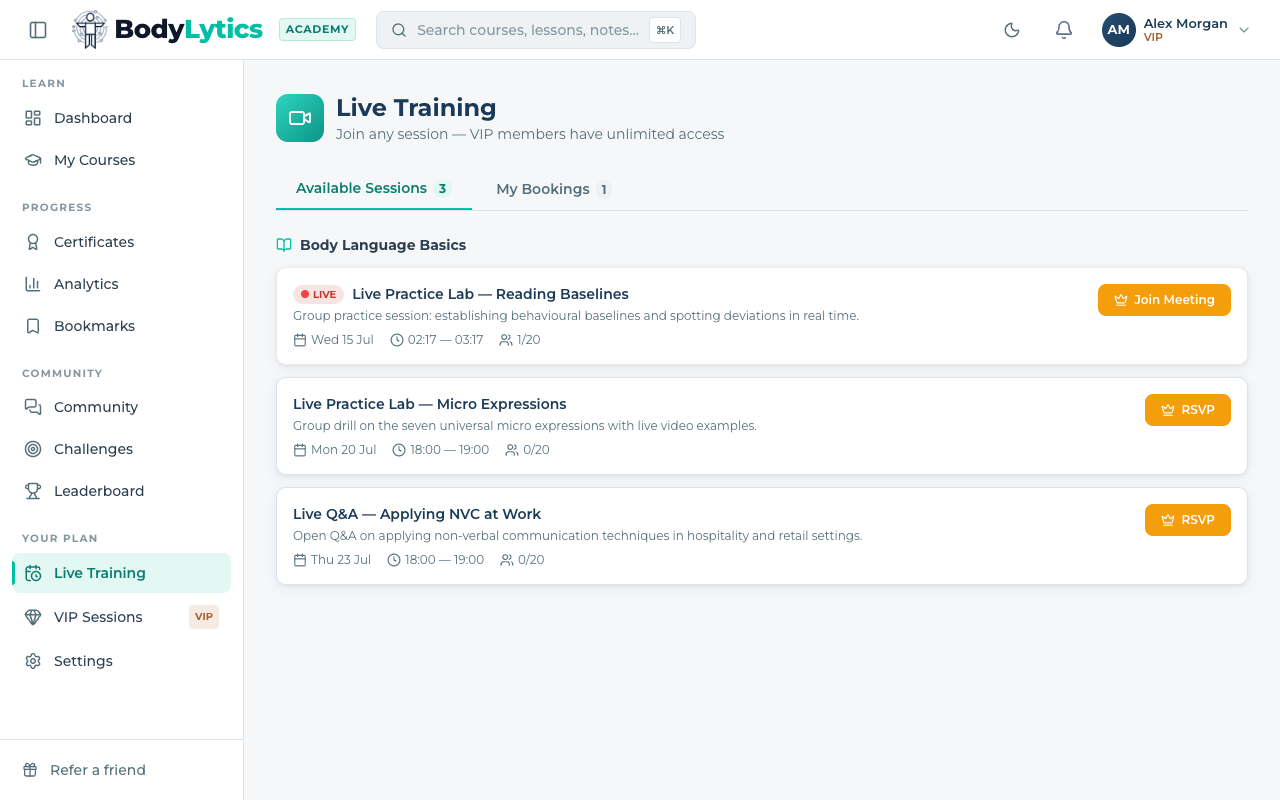
2. Open the session detail page
You'll land on the session's detail page with a live chat panel alongside it. Click Join Live Room to enter.
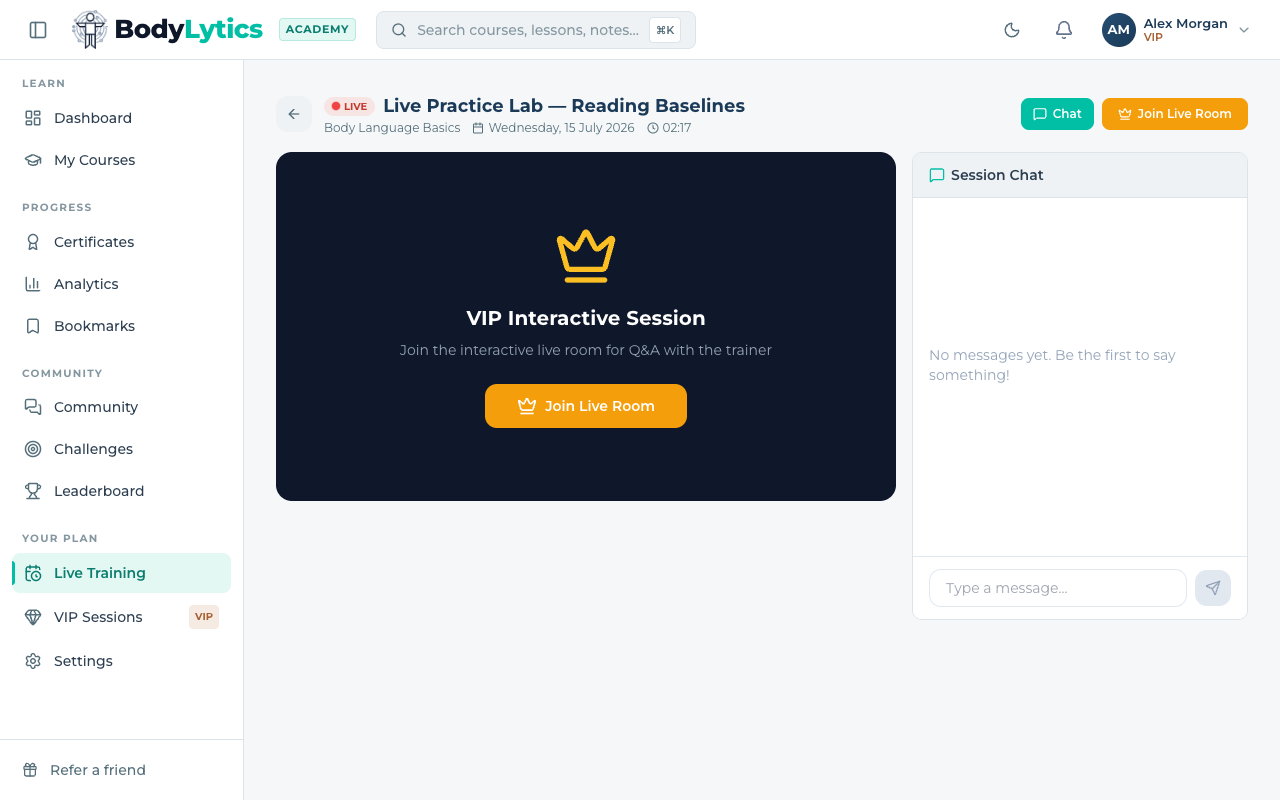
Note: the room only unlocks 15 minutes before the scheduled start time. If you click through earlier, you'll see a "room locked" screen with a countdown — just come back closer to start time.
3. Accept the consent notice
Every Live session is recorded and processed with AI assistance (for transcripts and session summaries). Before the room loads, you'll see a one-time consent screen explaining this. Read it, then click I understand — join the session.
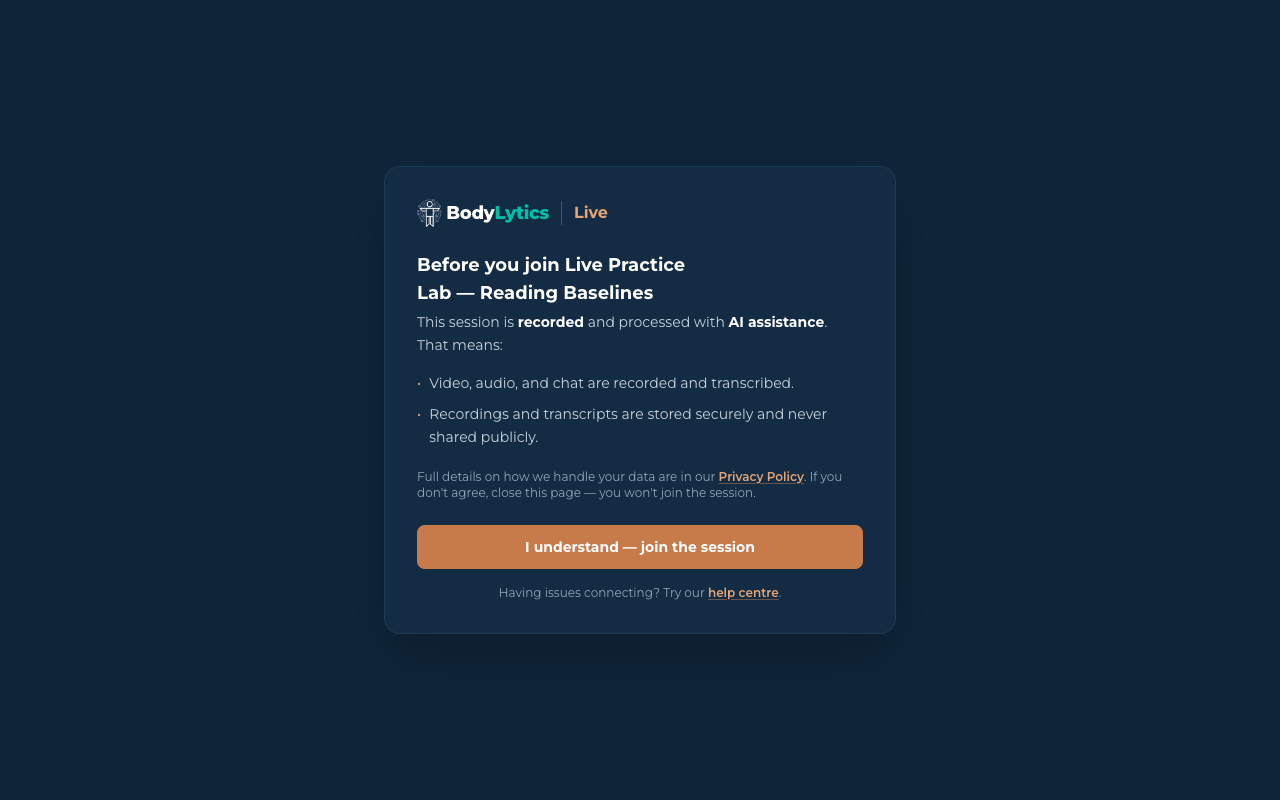
If you don't agree, simply close the page — you won't be joined or recorded.
4. You're in
Once you accept, the video room loads and you're connected. Your camera and microphone permissions will be requested by your browser the first time — allow them to be seen and heard.
Troubleshooting
Want to go deeper?
Sign up free to access our full library of guides, practice exercises, and interactive courses on body language.