

Reserving a Cohort Session
Cohort and VIP members can join live group practice sessions tied to their course. Here's how to reserve a spot.
1. Go to Live Training
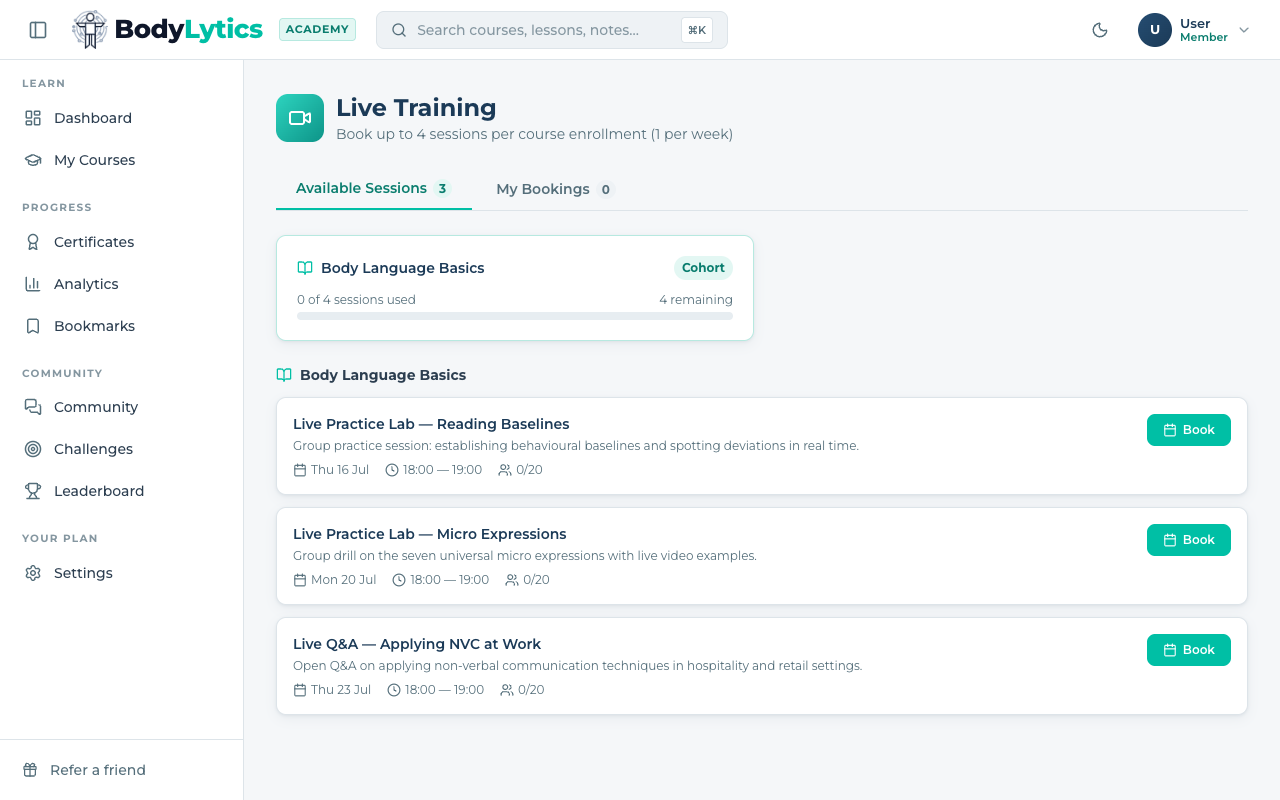
Open Live Training in the sidebar. You'll land on the Available Sessions tab, with a usage card showing how many sessions you've used this enrollment (cohort members get up to 4 per enrollment, 1 per week).
2. Book a session
Each session card shows the title, date, time, and how many spots are filled. Click Book on any session that works for your schedule.
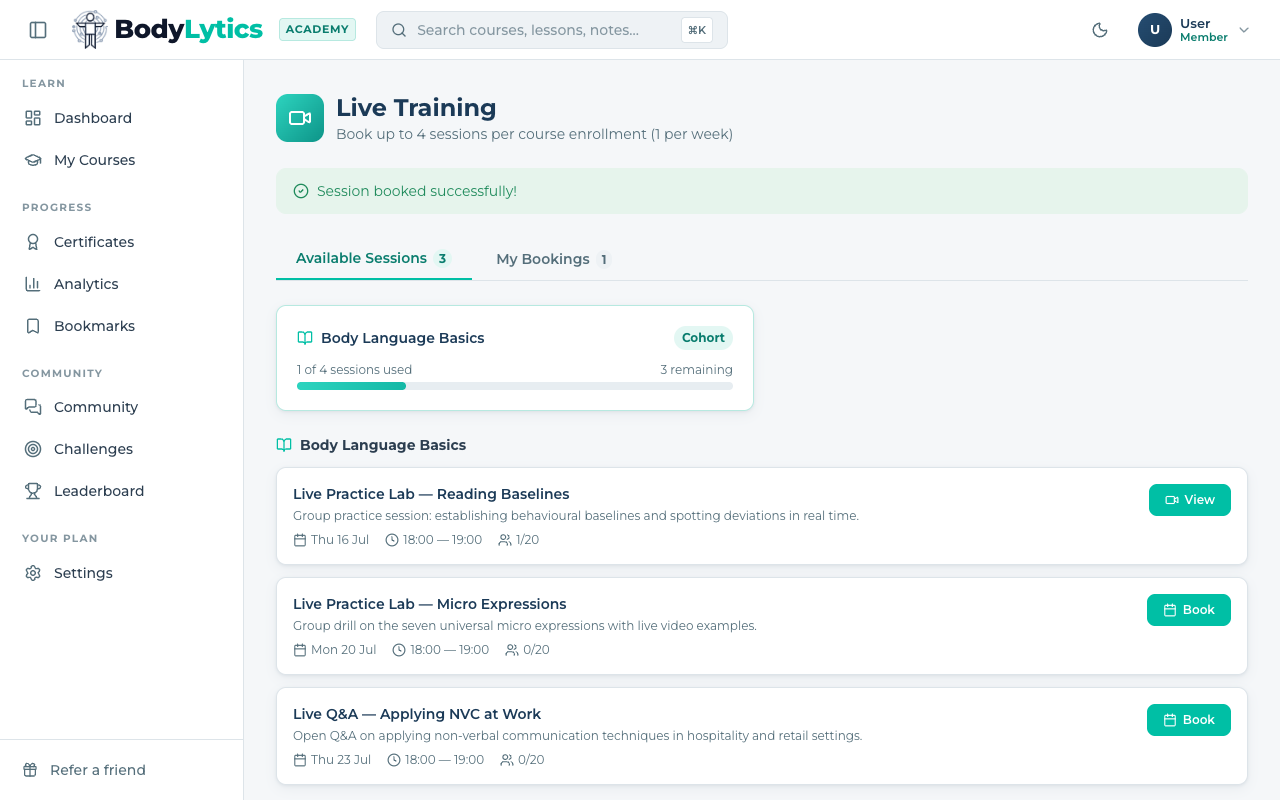
You'll see a "Session booked successfully!" confirmation, and the session moves from Book to View (or Join as Viewer once it's live).
If a session is full, the button will show Full instead.
3. Find it in My Bookings
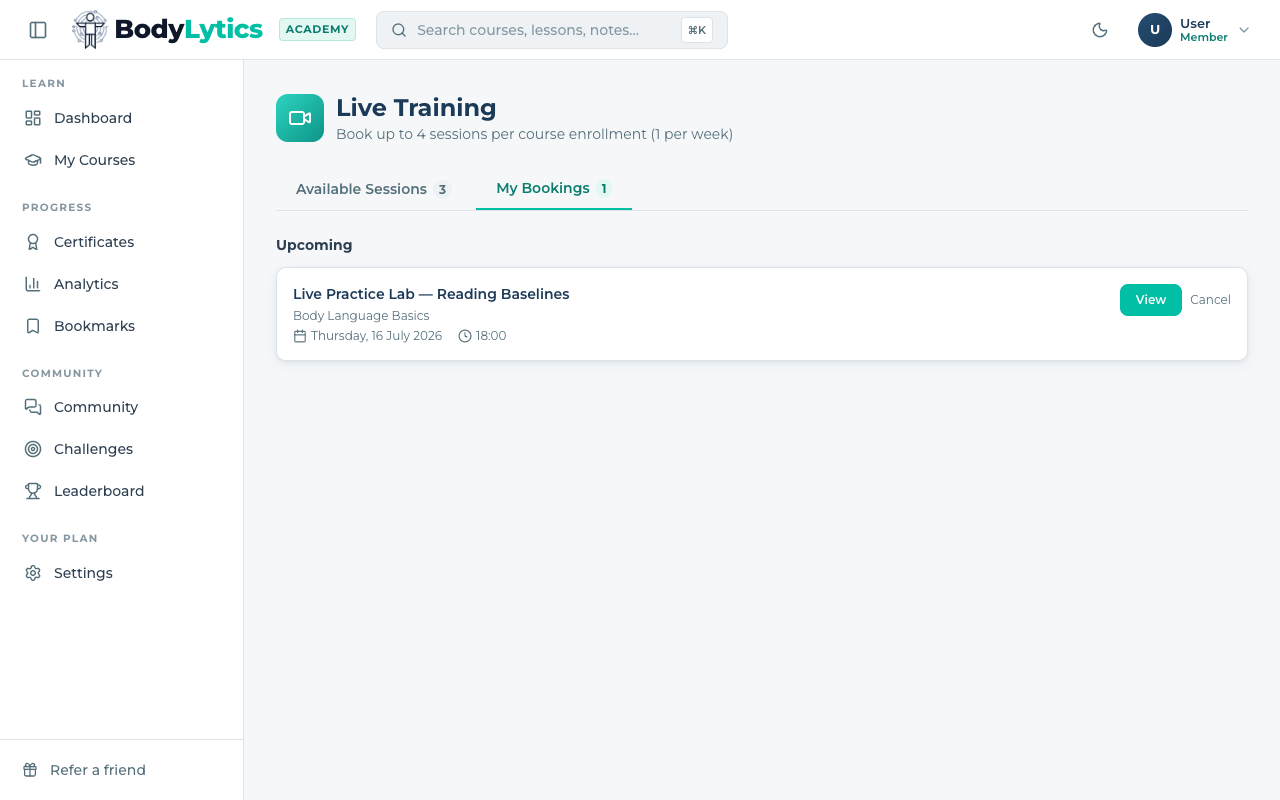
Switch to the My Bookings tab any time to see your upcoming reservations, with the date and time clearly listed.
Joining and cancelling
Want to go deeper?
Sign up free to access our full library of guides, practice exercises, and interactive courses on body language.